Aim Constraint
The VRCAimConstraint component rotates the target transform so it aims towards the sources. You can customize which direction is treated as forwards.
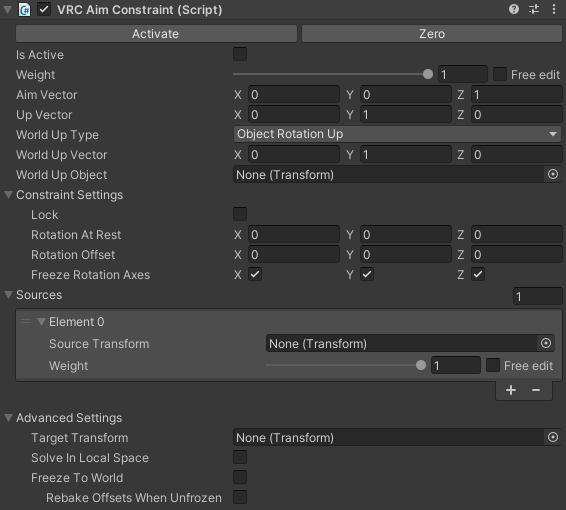
- Is Active - Controls whether the constraint will be evaluated or not. Disabling the entire component and deactivating the game object with the component on it will also stop the constraint from running.
- Weight - Controls the overall weight applied to this constraint.
- This should normally be in the range 0 to 1, but you can tick the
Free editbox if you want to set values outside of that range.
- This should normally be in the range 0 to 1, but you can tick the
- Aim Vector - Controls the axes that should face towards the sources.
- Up Vector - Controls the upwards axis for this constraint. This is the axis of the affected transform that the constraint will try to align with the world up axis defined below.
- World Up Type - Controls the world upwards direction used by this aim constraint.
- Scene Up - Treat upwards as the positive Y axis of the scene.
- Object Up - Treat upwards as the vector pointing from the target transform of the constraint to the transform specified in the
World Up Objectproperty. - Object Up Rotation - Treat upwards as the
World Up Vectoraxis in the local space of the transform specified in theWorld Up Objectproperty. - Vector - Treat upwards as the
World Up Vectorin world space. - None - Do not define an upwards direction.
The two buttons at the top the inspector are utilities to let you:
- Activate the constraint. This saves the current offset from the sources, then activates and locks the constraint.
- Zero out the constraint. This resets the offset to its default value, then activates and locks the constraint.
Constraint Settings
- Rotation At Rest - Defines the transform's rotation when the constraint's overall weight is 0.
- Rotation Offset - Defines the offset applied to the result of this constraint.
- Lock - When enabled, locks the
At RestandOffsetvalues in place, preventing them from being edited.- If you activate the constraint and leave these values unlocked, they'll be recalculated as the target transform's rotation changes.
- If you lock these values and activate the constraint, the constraint will start taking control of the transform.
- Freeze Rotation Axes - Allows you to exclude specific axes from evaluation as the constraint is solved. By default, all three axes are selected for evaluation.
Sources
The "Sources" list determines which transforms affect this constraint. Click the + button in the bottom right to add a new source. Click the - button to remove the currently selected source. Each source has the following options:
- Source Transform - The transform to use as a source.
- Weight - Controls how much this source should affect the constraint.
- This should normally be in the range 0 to 1, but you can tick the
Free editbox if you want to set values outside of that range.
- This should normally be in the range 0 to 1, but you can tick the
Advanced
- Target Transform - Defines the transform affected by this constraint component. If left empty, the transform this constraint is attached to will be affected instead.
- Solve In Local Space - If ticked, this constraint will be solved as if the sources are in local space rather than world space.
- Freeze To World - If ticked, this constraint will ignore its sources and keep a fixed rotation instead.
- Rebake Offsets When Unfrozen - If ticked, this constraint will rebake its offsets relative to its sources when
Freeze To Worldis disabled.
See the parent section covering Advanced Constraint Settings for a more in-depth description of how these advanced settings work.